If you use Claude Code for web development, you've probably noticed it can't see what's happening in your browser. It writes frontend code but has no idea if something's broken or what the page actually looks like.
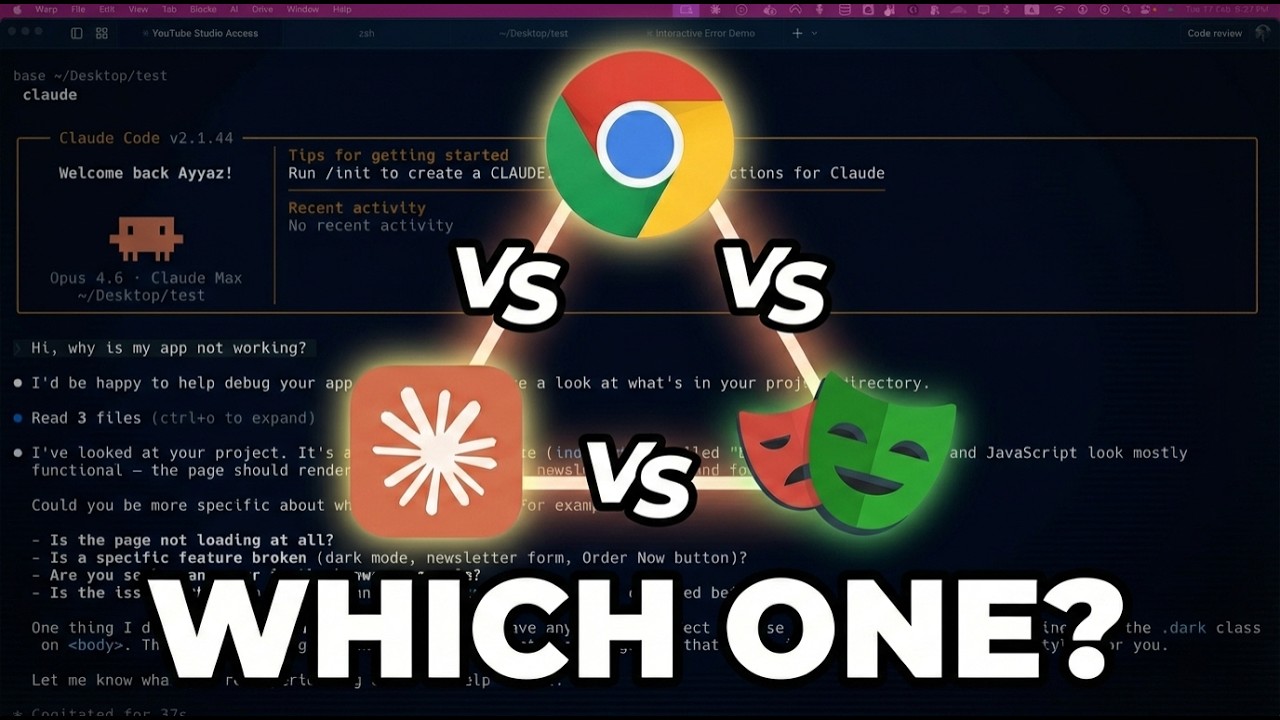
Now there are three different tools that solve this - and they work very differently from each other. I tested all three and compared them side-by-side.
The 3 Tools at a Glance
| Chrome DevTools MCP | Claude in Chrome | Playwright MCP | |
|---|---|---|---|
| Built by | Anthropic | Microsoft | |
| Tools | 26 | 16 | 33+ |
| Best for | Debugging, performance | Authenticated workflows | Cross-browser testing |
| Cost | Free | Paid Anthropic plan | Free |
Tool 1: Chrome DevTools MCP (Google)
Chrome DevTools MCP is an official MCP server built by Google's Chrome team. It gives Claude Code access to Chrome's built-in developer tools - console, network tab, performance profiler, DOM inspection, and more.
Setup
One command:
claude mcp add chrome-devtools --scope user npx chrome-devtools-mcp@latestNo API keys. No browser extension. It uses Chrome's DevTools Protocol directly.
What It Does Well
- Performance profiling: Full traces with Core Web Vitals (LCP, CLS, TBT)
- Console debugging: Read console errors with source-mapped stack traces
- Network inspection: Full request/response details including headers and payloads
- Screenshots and DOM snapshots: Visual verification of what the page looks like
- Device emulation: Test on slow 3G, different viewports, dark mode
Limitations
- Launches a separate Chrome instance (not your daily browser)
- No access to your logged-in sessions by default
- Takes up ~9% of context window for tool definitions
- Chrome-only (no Firefox or Safari)
When to Use It
Use Chrome DevTools MCP when you need to debug performance issues, fix console errors, or analyze network requests. It's the best diagnostic tool available.
Tool 2: Claude in Chrome (Anthropic)
Claude in Chrome is a Chrome extension that lets Claude Code control your actual browser - the one with all your cookies, logged-in sessions, and open tabs.
Setup
- Install the extension from Chrome Web Store
- Start Claude Code with the chrome flag:
claude --chromeOr inside an existing session, type /chrome and select "enable."
What It Does Well
- Authenticated sessions: Works with your logged-in accounts (YouTube Studio, Gmail, Notion, etc.)
- Multi-tab workflows: Navigate across multiple tabs and services
- Browser automation: Fill forms, click buttons, read page content
- Lightest context usage: ~7.7% of context window
Limitations
- No performance profiling
- Basic network and console inspection
- Requires a paid Anthropic plan (Pro, Max, Team, or Enterprise)
- Can't run headless (no CI/CD)
- Security considerations (Claude has access to your authenticated sessions)
When to Use It
Use Claude in Chrome when you need to interact with authenticated apps, automate browser tasks across logged-in services, or do quick visual verification of your work.
Tool 3: Playwright MCP (Microsoft)
Playwright MCP is based on Microsoft's Playwright browser automation framework. It has 33+ tools and supports Chromium, Firefox, and WebKit.
Setup
claude mcp add playwright npx '@playwright/mcp@latest'The Token Problem
Playwright MCP's biggest issue is context usage. Every page interaction returns a full accessibility tree that can be 50,000+ tokens on complex pages. This fills up your context window fast.
Chrome DevTools MCP returns more targeted responses - only what you asked for. Playwright sends everything.
When to Use It
Use Playwright MCP only if you specifically need cross-browser testing (Firefox, WebKit). For Chrome-based development, the other two tools are more efficient.
Head-to-Head Comparison
| Feature | Chrome DevTools MCP | Claude in Chrome | Playwright MCP |
|---|---|---|---|
| Performance profiling | Full | None | None |
| Network inspection | Deep | Basic | Basic |
| Authenticated sessions | No (separate Chrome) | Yes | No |
| Cross-browser | Chrome only | Chrome only | Chromium + Firefox + WebKit |
| Context cost (tools) | ~9% | ~7.7% | ~6.8% |
| Context cost (per action) | Targeted | Light | Heavy (full tree) |
| Headless / CI | Yes | No | Yes |
| Cost | Free | Paid plan | Free |
My Recommendation
For most developers using Claude Code:
- Install Chrome DevTools MCP first. It's free, one command, and covers debugging and performance analysis.
- Add Claude in Chrome if you need authenticated workflows. Requires a paid plan but enables working with logged-in services.
- Add Playwright MCP only for cross-browser testing. Skip it otherwise.
You can install all three, but each one adds to your context window. My setup is Chrome DevTools MCP + Claude in Chrome, which covers debugging, performance, and authenticated browser access.
Setup Commands Summary
# Chrome DevTools MCP (recommended for everyone)claude mcp add chrome-devtools --scope user npx chrome-devtools-mcp@latest# Playwright MCP (only if you need cross-browser)claude mcp add playwright npx '@playwright/mcp@latest'# Claude in Chrome (install extension first, then)claude --chrome