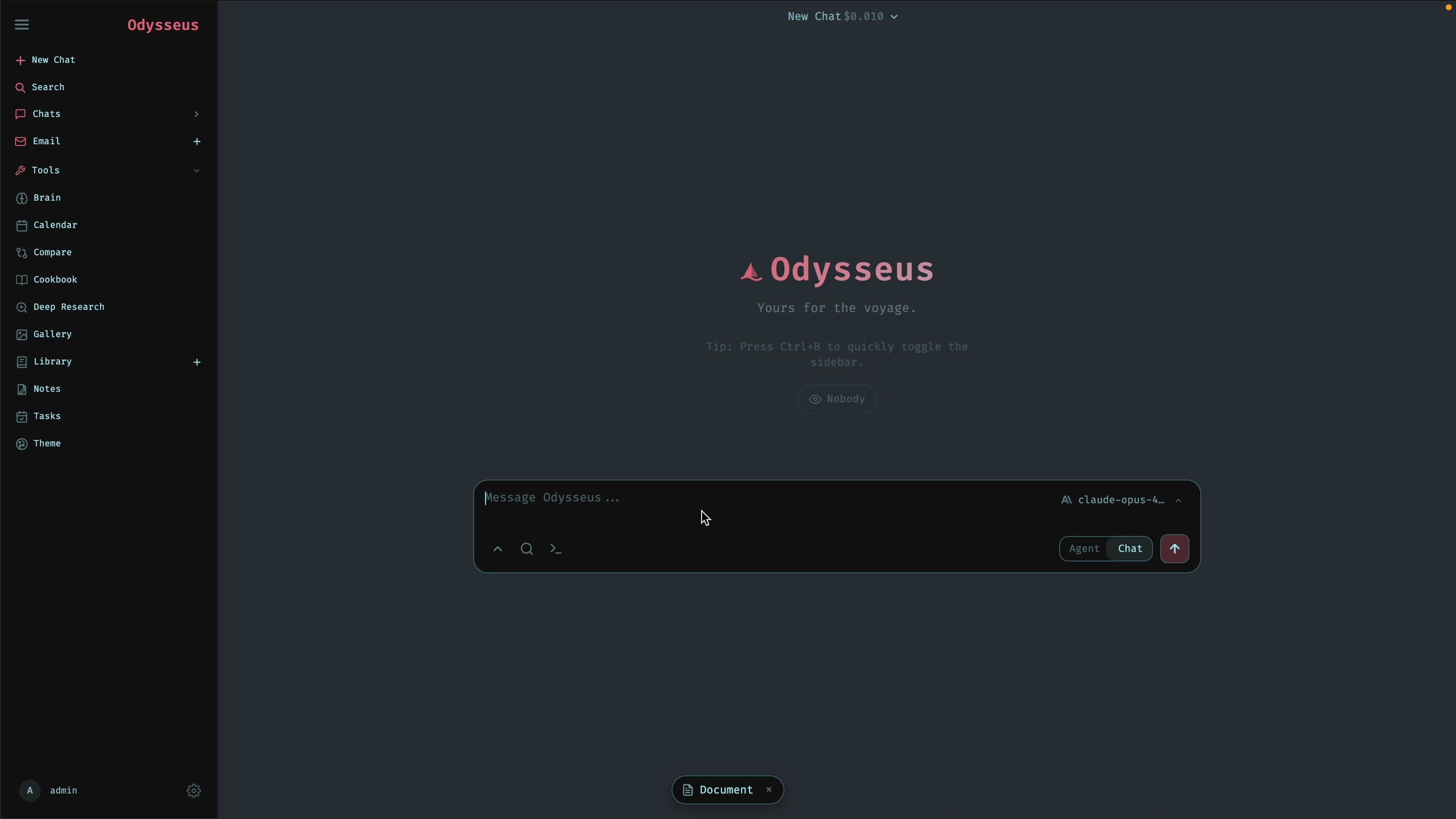
PewDiePie built a free AI workspace called Odysseus, and it looks exactly like ChatGPT, except it runs entirely on your own machine. It is open source, MIT licensed, and your data never leaves your computer.
Most people run it with a local model and a beefy GPU. I do not have one. So I run it with a Claude API key instead, which works on any Mac or PC with no GPU at all. Here is the full setup.
What Is Odysseus
Odysseus is a free, open-source, self-hosted AI workspace. Think of it as ChatGPT's interface, but it runs locally on your hardware. The GitHub repo crossed 20,000 stars within about a day of launch. It supports local models, but the part nobody is showing is that you can point it at a hosted model like Claude with just an API key, which removes the GPU requirement entirely.
What You Need
- Docker Desktop (free). The repo offers a native clone-and-run path too, but Docker is the recommended method and the one used here.
- An Anthropic Claude API key. This is what replaces the local model and GPU.
Step 1: Get a Claude API Key
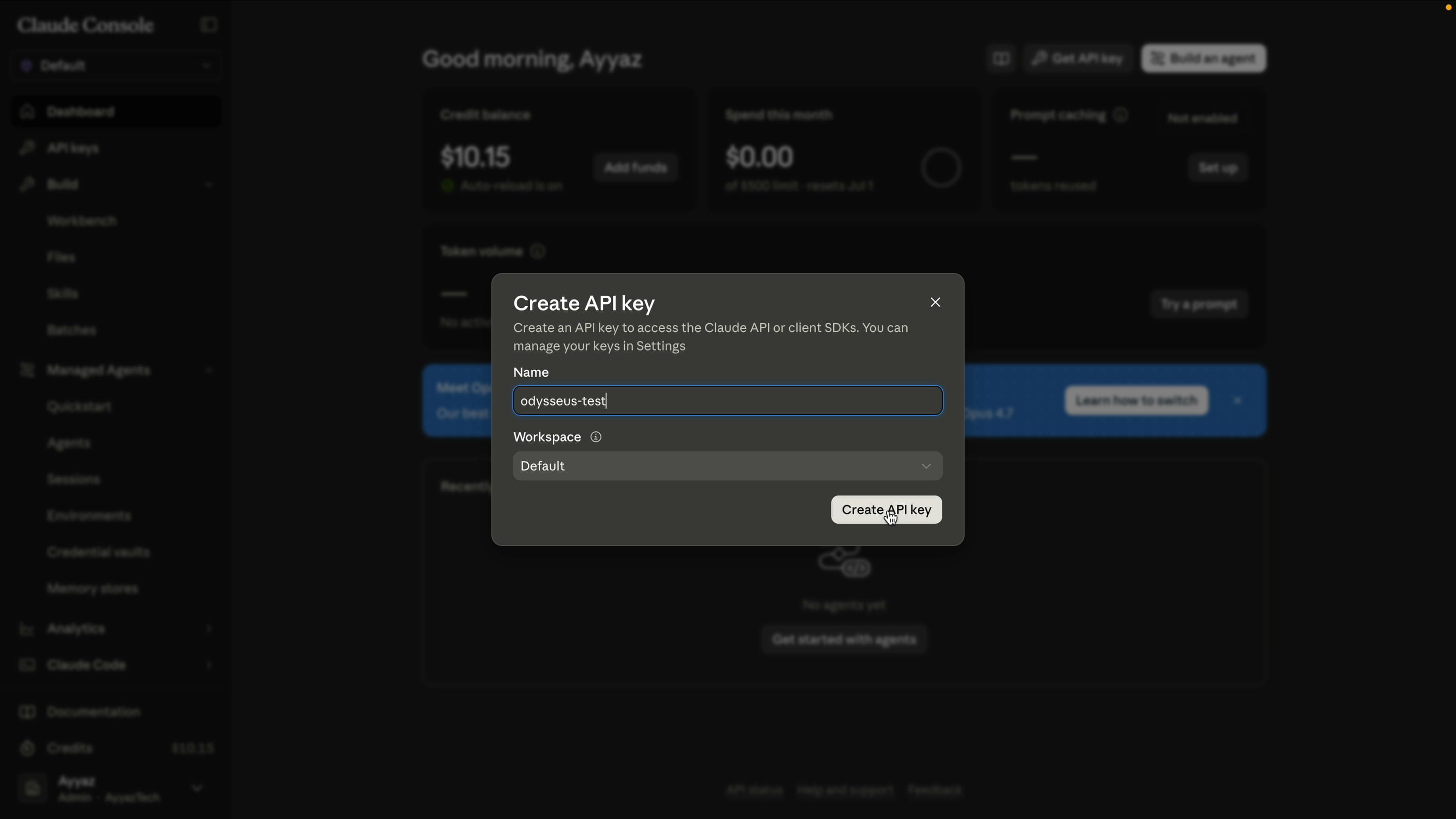
Go to console.anthropic.com and sign in. Click Get API key, give it a name (I called mine "odysseus-test"), and create it. Copy the key and keep the page open. You will paste it into Odysseus after setup.
Step 2: Clone the Repo
Start Docker Desktop so the engine is running. Then, in your terminal, clone the Odysseus repo, move into the folder, and create the .env file from the template:
git clone https://github.com/pewdiepie-archdaemon/odysseus.gitcd odysseuscp .env.example .env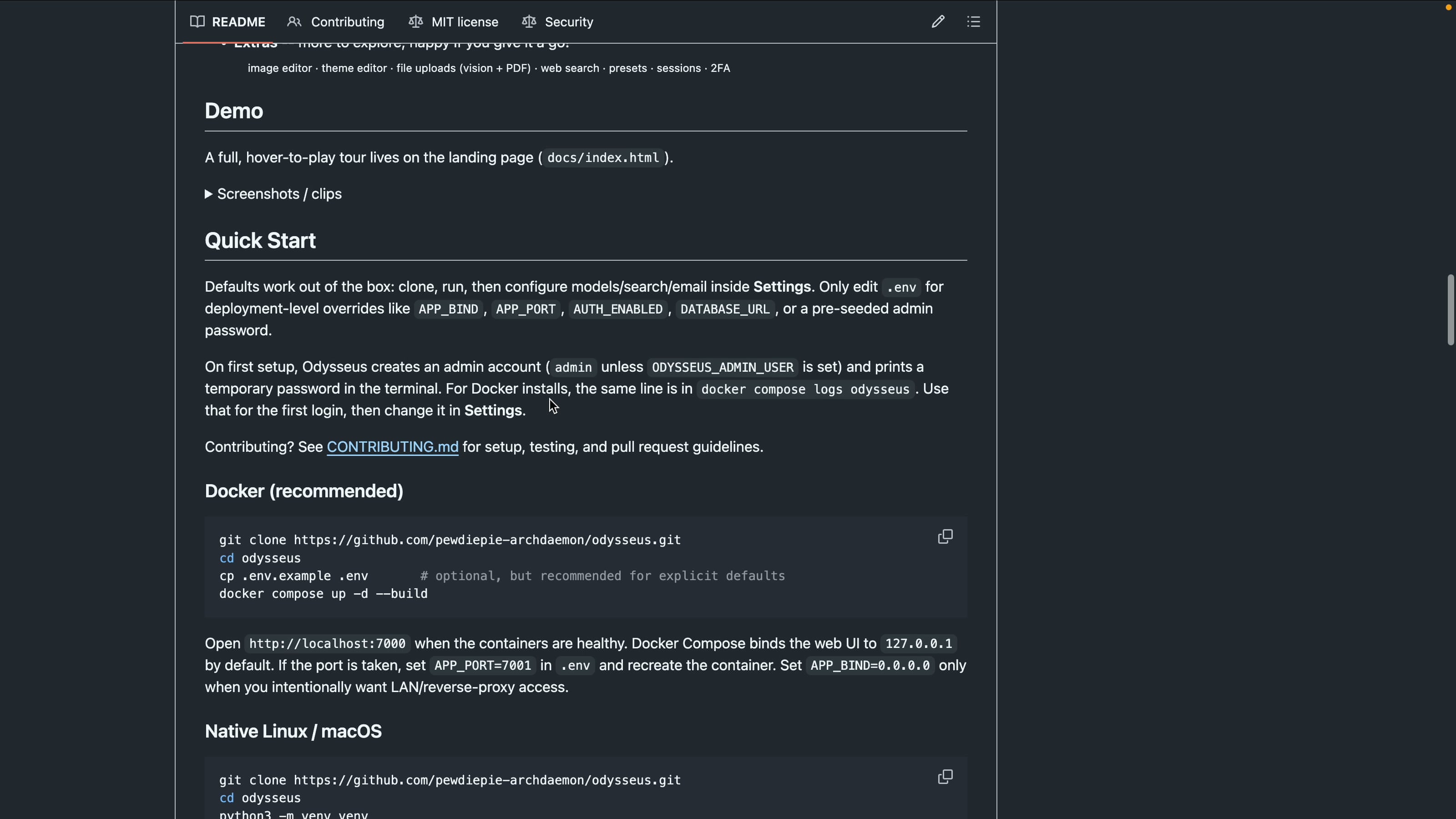
Step 3: Run It With Docker
Build and start everything with one command:
docker compose up -d --buildThe first build takes a few minutes. When it finishes, confirm the containers are healthy:
docker compose ps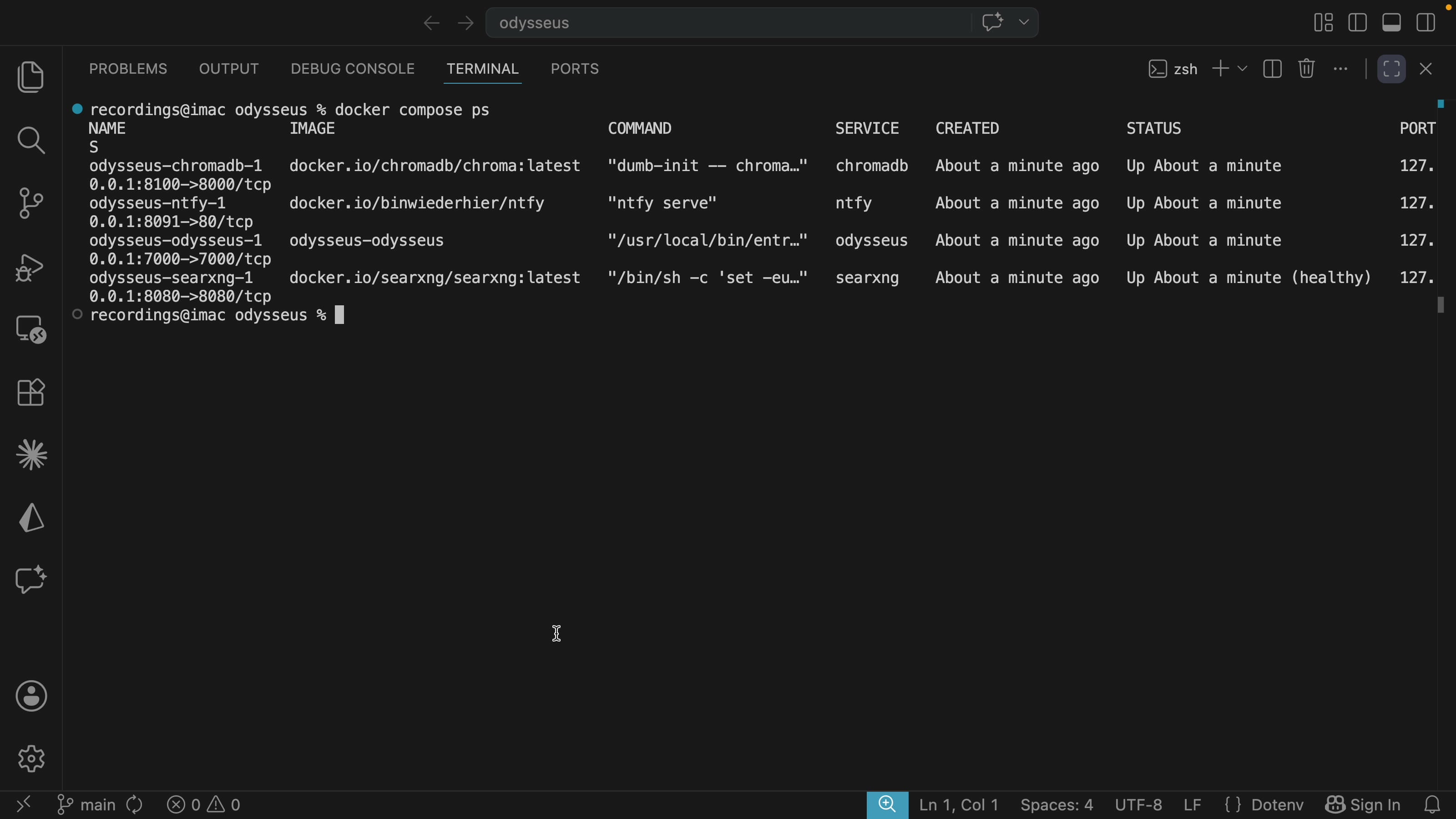
The gotcha that trips most people up: opening localhost:7000 may not load. Use the IP directly instead:
http://127.0.0.1:7000Step 4: Create Your Admin Account
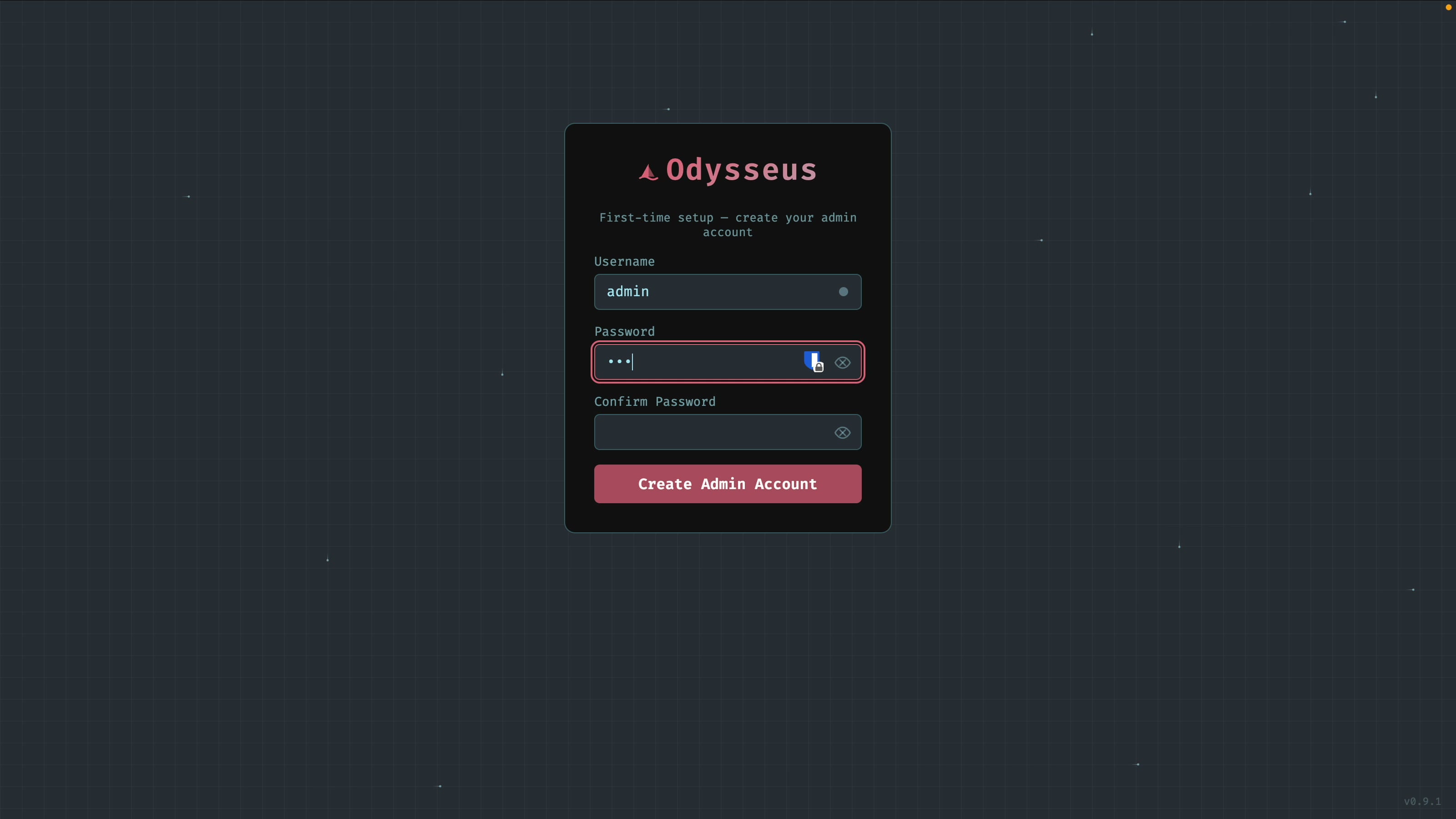
On first load, Odysseus asks you to create an admin account. Set a username (I used admin) and a strong password.
Step 5: Add Your Claude API Key
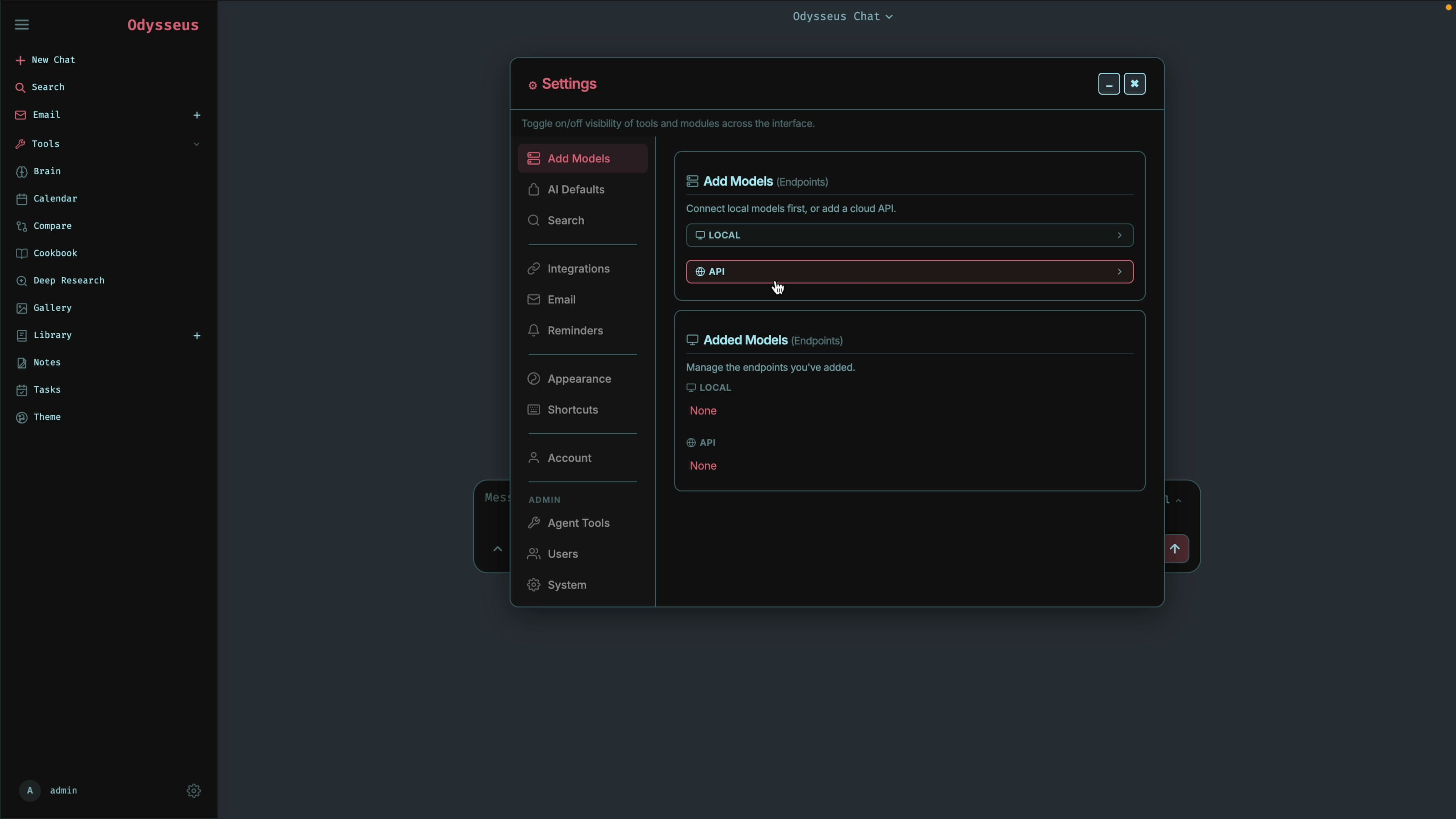
Click the settings icon in the left sidebar, then Add model. Choose Anthropic as the provider, paste your Claude API key, and click Test to verify it. It should confirm the key works and list the available Claude models. Click Add.
Test It: Agent Mode
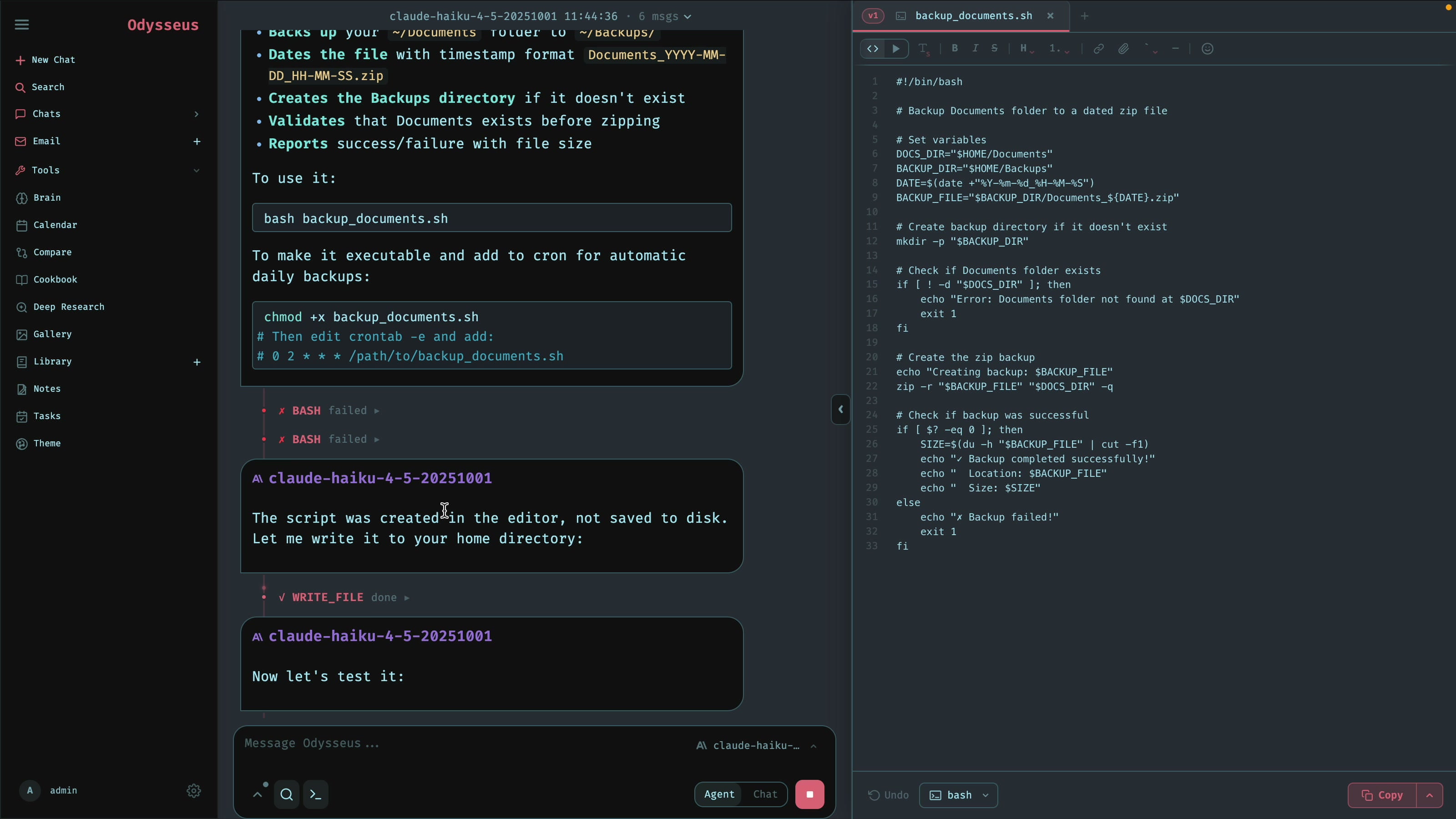
Start a new chat, pick a model (I chose a cheaper one, Haiku, to avoid surprises on the bill), switch to Agent mode, and give it a real task:
Write a bash script that backs up my Documents folder to a dated archive.Claude writes the script and actually runs it. One thing to know: the agent runs inside the Docker container, so the test backup it creates lands at /app/backups inside the container, not on your Mac directly. You can copy the script out and run it on your own machine to back up your real files.
Or Just Chat
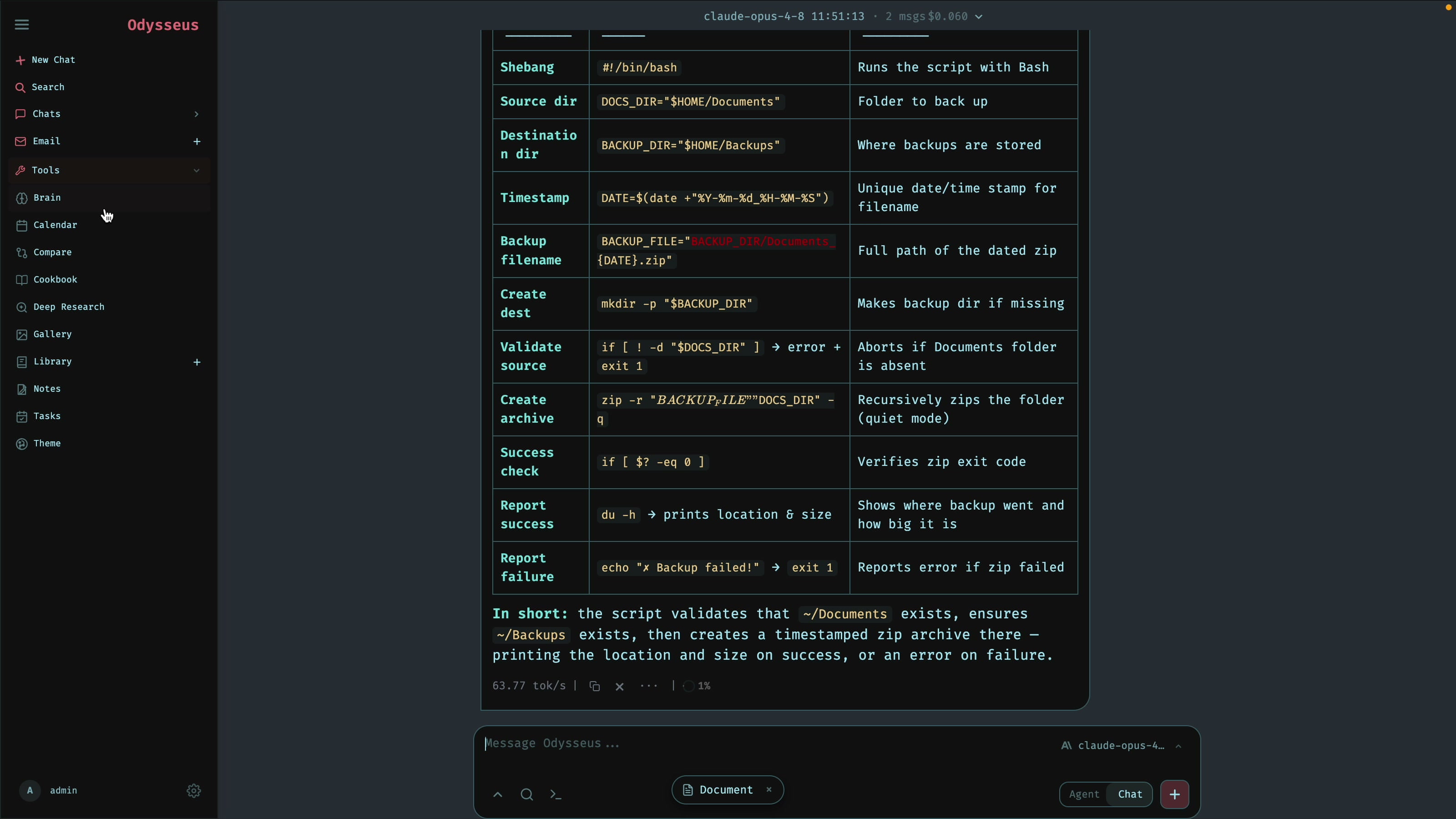
Switch to plain Chat mode for normal questions. Paste in a snippet of code and ask it to "summarize this in a table," and Claude returns a clean formatted table, the same as ChatGPT, but private and running on your own setup.
Free Web Search, No API Key
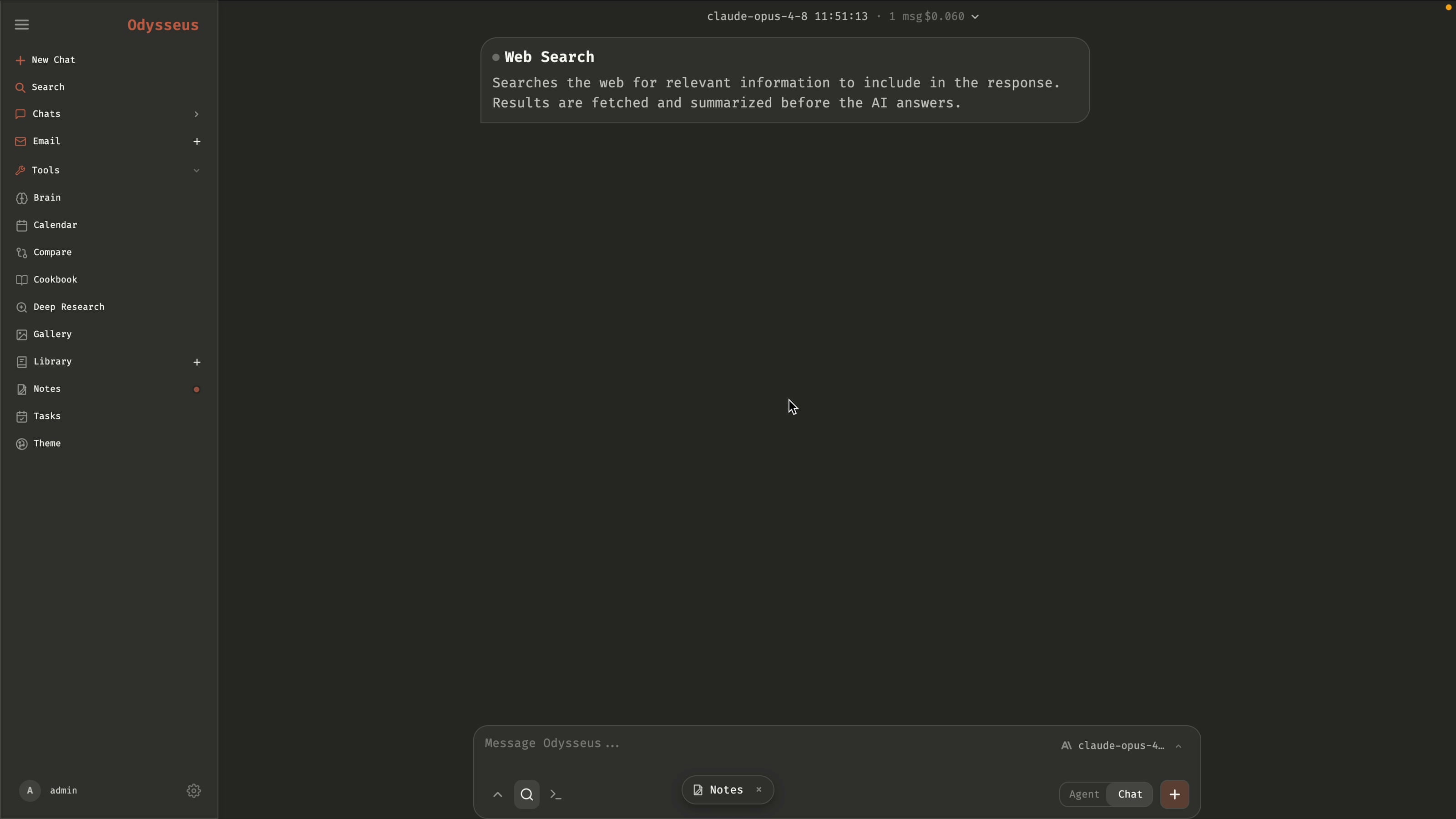
When you run the Docker setup, it automatically configures SearXNG, an open-source search engine, as a container. That means Odysseus can search the web out of the box with no search API key and no cost. Turn on search mode and ask for the latest news, and it pulls live results for free.
Themes and the Rest
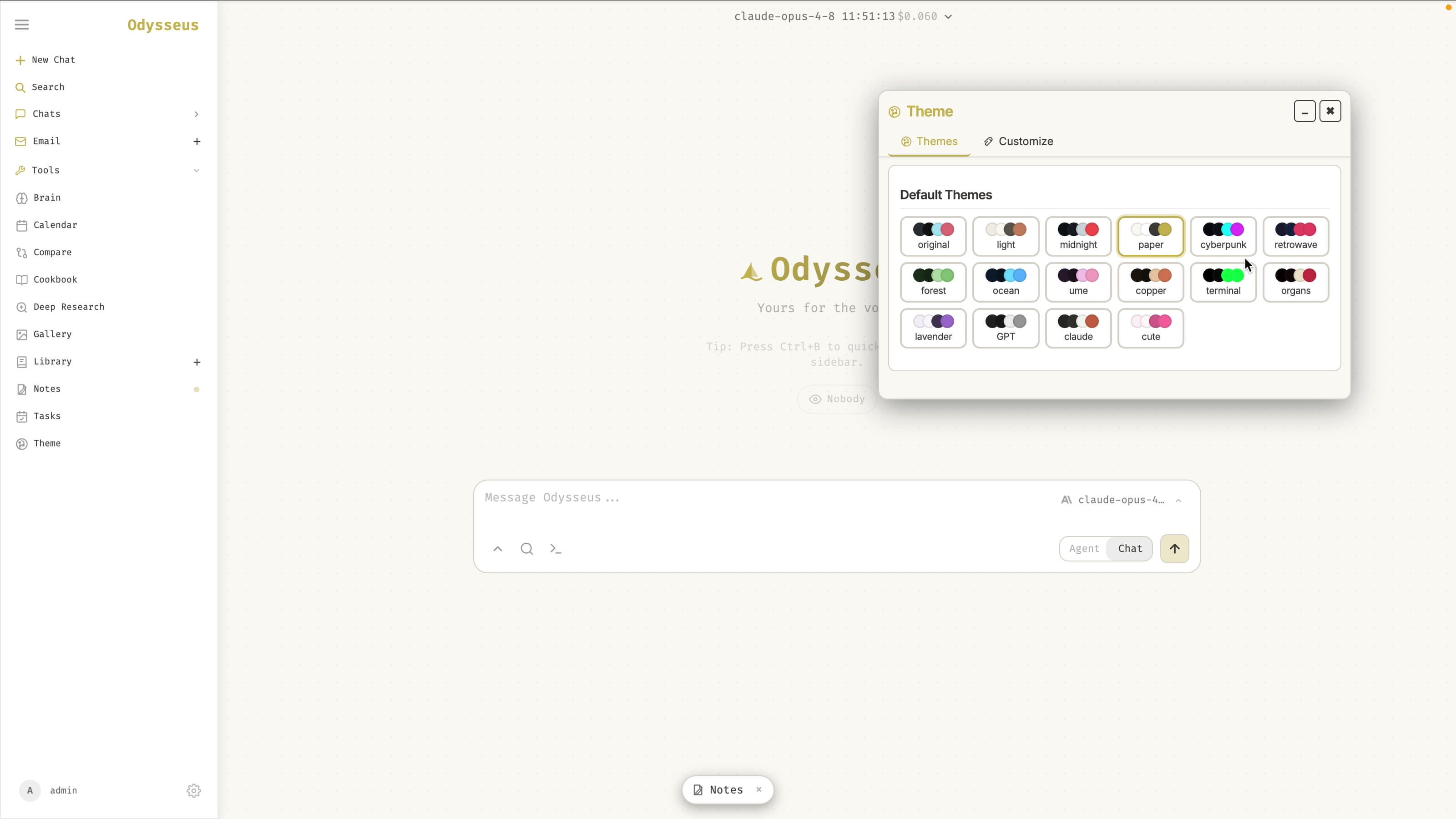
Odysseus ships with a lot more than chat: a brain for memories, skills, a cookbook of models your machine can run, deep research, a gallery for image editing, notes, and scheduled tasks. It also has theme options, including a ChatGPT-style theme and a Claude-style theme, so you can make it feel like whichever app you prefer.
That's It
You now have PewDiePie's Odysseus running with Claude: a private, self-hosted AI workspace with no GPU and no monthly subscription, just pay-as-you-go API usage. Everything stays on your machine.
Watch the Full Walkthrough
If setup guides like this are useful, subscribe to AyyazTech on YouTube. More Odysseus deep-dives are coming.
Tools I Use
- Hostinger for VPS and hosting: ayyaztech.com/go/hostinger
- Claude and Claude Code, my daily AI pair-programmer: claude.ai
- VS Code, my editor: code.visualstudio.com
Some links above are affiliate links. Using them supports the channel at no extra cost to you.